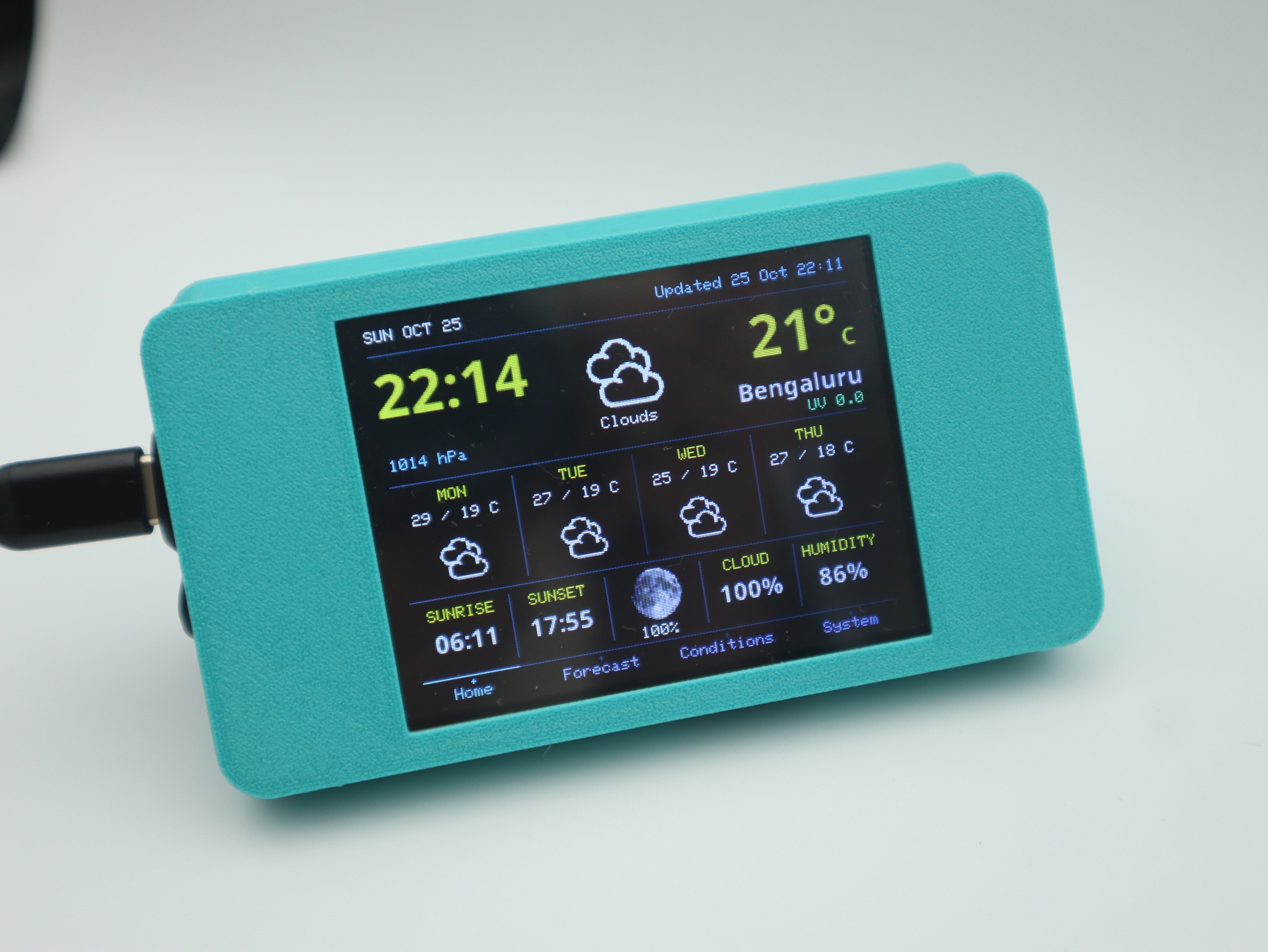
I wanted a small weather display for my desk that could show live weather updates without having to check my phone every time.
I wanted a small weather display for my desk that could show live weather updates without having to check my phone every time. So I decided to build one using the ESP32 Cheap Yellow Display (CYD), an affordable development board with a built-in 2.8-inch touchscreen and Wi-Fi.
The weather station connects to Wi-Fi and automatically fetches the latest weather information from OpenWeatherMap and Open-Meteo. It displays the current temperature, humidity, UV index, sunrise and sunset times, moon phase, and upcoming weather forecasts.
To make it portable, I added a rechargeable battery, USB-C charging, and a small ON/OFF switch, then fitted everything inside a 3D-printed enclosure. Since the weather data comes from online services, there's no need for any external weather sensors.
A big thanks to NextPCB for their continued support and sponsorship of my DIY electronics projects!
NextPCBhas been a valuable partner in bringing my electronics ideas to life. With over 15 years of experience in PCB fabrication and assembly, they provide reliable, high-quality PCB manufacturing services for makers, hobbyists, and engineers worldwide.
Whether you're building a simple prototype or designing a complex multilayer PCB, NextPCB makes it easy to turn your designs into professional circuit boards.
Special Offers from NextPCB
- PCB Manufacturing: Starting at just $1.90 – Get a Quote
- Multilayer PCBs: Starting at $6.90.
- Free PCB Assembly: For up to 5 boards – Learn More
- Free DFM & Gerber Viewer: Check your PCB designs before manufacturing – Try It Here
- New User Bonus: Get a $30 discount coupon after registration (terms apply).
Parts and Tools Required
Here are the components and tools I used to build this weather station.
Components
- ESP32 CYD 2.8-inch Smart Display – AliExpress
- Battery Charging Module – AliExpress
- USB Type-C Female Connector (2-Pin) – AliExpress
- Mini Rocker Switch – AliExpress
- Rechargeable Battery – AliExpress
- M3 × 12 mm Screws – 4 pieces
- 3D-Printed Enclosure – To house the display and other components
Tools
Most of these components are available online or at local electronics stores. If you already have a 3D printer and basic soldering tools, this project is fairly inexpensive to build.
How It Works
The weather station uses the ESP32 Cheap Yellow Display (CYD), which has a 2.8-inch touchscreen and built-in Wi-Fi. Since the weather data comes from the internet, we don't need any additional sensors.
When powered on, the ESP32 connects to Wi-Fi and gets weather information from OpenWeatherMap for current conditions and forecasts, and Open-Meteo for the UV index.
Everything is shown on the 320 × 240 touchscreen, including temperature, humidity, pressure, wind, UV index, sunrise and sunset times, moon phase, and upcoming forecasts.
I divided the interface into four pages: Home, Forecast, Conditions, and System. You can switch between them using the touchscreen, so everything stays easy to read without crowding the screen.
The weather data updates automatically every 15 minutes. If Wi-Fi disconnects, the display keeps the last available weather information and tries to reconnect. An internet connection is needed for fresh updates.
Cheap Yellow Display 2.8" Ready to Use Module
If you've ever worked with a touchscreen project, you know how much wiring and setup can be involved. That's why I chose the Cheap Yellow Display (CYD).
It's an affordable 2.8-inch touchscreen board based on the ESP32-WROOM-32. The display, touch controller, and microcontroller are all on one PCB, so there's no need to connect them separately.
What's Onboard?
The CYD comes with several useful features:
- 2.8-inch TFT Display: 320 × 240 color display with resistive touch.
- ESP32-WROOM-32: Dual-core processor with built-in Wi-Fi and Bluetooth.
- RGB LED: Located on the back of the board.
- Photoresistor (LDR): Built-in light sensor.
- MicroSD Card Slot: For storing images and other files.
- Expansion Connectors: For connecting external sensors and other devices.
- USB Connectivity: Micro-USB or USB-C, depending on the board version.
Technical Specifications
- Microcontroller ESP32-WROOM-32 Processor Dual-core ESP32, up to 240 MHz
- Wireless 2.4 GHz Wi-Fi + Bluetooth
- Display 2.8-inch TFT LCD
- Resolution 240 x 320 pixels
- Display Driver ILI9341 Touchscreen
- Storage MicroSD card slot
- Programming Arduino IDE / ESP-IDF
- Power 5V via USB
Note: CYD boards come in different versions, so the display driver, USB connector, and available GPIO pins may vary.
Why I Chose It
For this project, the CYD has almost everything we need. The built-in Wi-Fi gets the weather information, and the touchscreen lets us switch between different weather pages.
Since we're using online weather data, there's no need to connect any external weather sensors.
It's also a nice board for experimenting with other projects, like IoT dashboards, smart home controllers, and touchscreen interfaces.
Less wiring and more time for the actual project!
Building the Power Supply Circuit
I wanted to make the weather station portable, so I used a 3.7V rechargeable battery, a USB-C charging module, and a small ON/OFF switch.
The charging module already has a USB-C port, but I wanted the charging connector to be accessible from outside the enclosure. Luckily, the module has solder pads on the back for this.
I first checked the polarity with a multimeter and then soldered the wires from the external USB-C connector to the corresponding pads.
Next, I connected the 3.7V battery to the charging module. To power the CYD, I used its 4-pin UART connector, which has 5V/VIN and GND pins. I connected the module's regulated 5V output to the CYD through the rocker switch, while GND was connected directly.
Before connecting the display, I checked the output voltage with a multimeter to make sure it was around 5V. I also tested the ON/OFF switch to confirm everything was working properly.
Note: Make sure your charging module supports a regulated 5V boost output and lithium-ion battery protection. A regular 3.7V charging module without a boost converter won't work for this setup. Always double-check the CYD pinout and polarity before connecting power.
Programming the ESP32 CYD Weather Station
Before putting everything inside the enclosure, let's upload the firmware and test the weather dashboard.
Download the Firmware
First, download the complete project from my GitHub repository:
Click Code > Download ZIP and extract the files. The project includes the Arduino source code, required libraries, display settings, weather icons, fonts, and LittleFS uploader.
Download and install Arduino IDE (version 2.2.1 or newer).
Open File > Preferences and add this URL under Additional Boards Manager URLs:
Next, open Tools > Board > Boards Manager, search for esp32 by Espressif Systems, and install version 3.2.0.
Installing the Required Libraries
Inside the downloaded project, open the libraries folder. I've included all four required libraries as ZIP files:
- TFT_eSPI - 2.5.44
- TJpg_Decoder - 1.1.0
- ArduinoJson - 7.4.2
- XPT2046_Touchscreen - 1.4
In Arduino IDE, go to Sketch > Include Library > Add.ZIP Library and install each one.
The supplied TFT_eSPI library is already configured for the CYD ILI9341 display. If you've installed TFT_eSPI before, make sure its User_Setup.h uses the included Setup801_ESP32_CYD_ILI9341_240x320.h configuration.
Configuring Wi-Fi and Weather API
Open the Esp32_CYD_TFT_eSPI_OpenWeather_LittleFS_v02 folder and load its.ino file in Arduino IDE.
Find Secrets.example.h, make a copy, and rename it to Secrets.h.
Open the new file and enter your Wi-Fi details and OpenWeather API key:
#define WIFI_SSID "YOUR_WIFI_NAME"#define WIFI_PASSWORD "YOUR_WIFI_PASSWORD"inline constexpr char OPENWEATHER_KEYS[][33] = {"YOUR_OPENWEATHER_API_KEY",""};
You can get an API key from OpenWeatherMap. Make sure it's activated and supports the weather and forecast requests used by the project.
Open-Meteo provides the UV index without needing another API key.
The default location is Bengaluru, India. To change it, open All_Settings.h and update CITY_NAME, LATITUDE, LONGITUDE, and TIMEZONE_POSIX for your location.
Now click Verify to compile the code. If everything is fine, click Upload.
Uploading Weather Icons and Fonts
There's one more important step. The dashboard uses weather icons, moon phase images, fonts, and other graphics stored in the ESP32's LittleFS filesystem.
Inside the project, open tools/littlefs-uploader and copy the included arduino-littlefs-upload-1.6.3.vsix file to the Arduino IDE plugins folder.
#define WIFI_SSID "YOUR_WIFI_NAME"#define WIFI_PASSWORD "YOUR_WIFI_PASSWORD"inline constexpr char OPENWEATHER_KEYS[][33] = {"YOUR_OPENWEATHER_API_KEY",""};
#define WIFI_SSID "YOUR_WIFI_NAME"#define WIFI_PASSWORD "YOUR_WIFI_PASSWORD"inline constexpr char OPENWEATHER_KEYS[][33] = {"YOUR_OPENWEATHER_API_KEY",""};
Create the plugins folder if it doesn't exist, then restart Arduino IDE.
Open the same sketch again and close the Serial Monitor.
Press Ctrl + Shift + P (Cmd + Shift + P on macOS) and select:
Upload LittleFS to Pico/ESP8266/ESP32
This uploads the contents of the data folder to the ESP32. Keep the same board, port, and partition settings used for the firmware upload.
Once it finishes, reset the CYD.
Testing the Weather Station
After restarting, the ESP32 should connect to Wi-Fi and start downloading the weather information. Once the data loads, you'll see the weather dashboard on the screen.
Try switching between the Home, Forecast, Conditions, and System pages using the touchscreen.
If the touch response isn't accurate, open the System page and use the calibration option.
You can also open the Arduino Serial Monitor at 115200 baud to check the Wi-Fi connection, weather updates, and any errors.
If everything works, we're ready to assemble the enclosure!
3D Printing and Assembling the Enclosure
Now that the weather station is programmed and working, it's time to put everything together. I'm using a compact 3D-printed enclosure to hold the CYD display, battery, charging module, and power switch.
Download the two STL files attached to this step: Case Front.stl and Case Back.stl. Open them in your slicer and print both parts. I used PLA filament, but PETG should also work.
Once the parts were printed, I installed the rocker switch and external USB-C charging connector into their openings. Then I placed the battery and charging module inside the enclosure, making sure the wires were neatly arranged and wouldn't get pinched when closing the case.
Next, I connected the power cable to the CYD and carefully positioned the display inside the enclosure, aligning it with the mounting points.
Finally, I fitted the front and back pieces together and secured everything using M3 screws.
That's it! Turn on the switch, and your weather station is ready to use.
Final Result - Weather Station Is Ready!
And that's it! Our ESP32 CYD Weather Station is finally complete. With everything fitted inside the 3D-printed enclosure, we now have a compact, rechargeable weather display for the desk.
The weather station connects to Wi-Fi and automatically updates the weather information every 15 minutes. I also designed four touchscreen pages to keep everything organized:
- Home: Current temperature, time, weather conditions, four-day forecast, sunrise, sunset, moon phase, and humidity.
- Forecast: Detailed four-day forecast with temperature, humidity, pressure, wind, and rainfall.
- Conditions: Wind speed and direction, humidity, cloud cover, visibility, pressure, rainfall, and UV index.
- System: Wi-Fi status, weather updates, data status, manual refresh, and touchscreen calibration.
You can easily switch between pages using the touchscreen or enable automatic page switching from the System page.
The rechargeable battery makes the weather station portable, and the external USB-C connector lets me charge it without opening the case. There's also a small ON/OFF switch on the side.
I'm really happy with how this little project turned out. It's a simple way to turn an inexpensive ESP32 touchscreen into a useful weather display, without needing any external weather sensors.
I've shared the complete firmware and project files on GitHub, so you can build your own or customize it further.
I hope you enjoyed this project! If you build one, I'd love to see your version. Feel free to share your feedback or ask questions in the comments.
Thanks for reading, and happy making! :)